Apparently `sudoedit` is a thing. That loads your personal .vimrc while executing edits as root. In which case, if you use sudoedit, you may want to add these tweaks to your personal ~/.vimrc
- Fix the auto-indentation of YAML when commenting out an existing line (for both your username and root) ``` cat << EOF >> ~/.vimrc " Fix auto-indentation for YAML files augroup yaml_fix autocmd! autocmd FileType yaml setlocal ts=2 sts=2 sw=2 expandtab indentkeys-=0# indentkeys-=<:> augroup END EOF sudo bash -c 'cat << EOF >> ~/.vimrc " Fix auto-indentation for YAML files augroup yaml_fix autocmd! autocmd FileType yaml setlocal ts=2 sts=2 sw=2 expandtab indentkeys-=0# indentkeys-=<:> augroup END EOF' ``` - Set VIM as the default editor ``` sudo update-alternatives --config editor ``` ## Template Image Prep ### Set up OpenSSH Key ReconfigurationIf you simply clone an Ubuntu image without resetting the OpenSSH server host keys, an attacker can take those host keys and perform a MITM SSH attack on any system that was cloned from the same image. So we have to make sure those are reset before we make the image, and then automatically regenerated on the next boot.
- Copy/Paste/Run this entire chunk of script into your terminal (creates process that checks for missing keys at boot, and regenerates them if missing): ``` if [ `systemctl is-enabled openssh-reconfigure.service 2> /dev/null > /dev/null || true && false` ] ; then \ echo "OpenSSH Key Reconfiguration Service already installed." ; \ else sudo bash -c 'cat << EOF > /usr/local/sbin/openssh-reconfigure #!/bin/bash test -f /etc/ssh/ssh_host_dsa_key || dpkg-reconfigure openssh-server EOF' sudo chmod 700 /usr/local/sbin/openssh-reconfigure sudo bash -c 'cat << EOF > /etc/systemd/system/openssh-reconfigure.service [Unit] Description=OpenSSH Key Reconfiguration Service Before=ssh.service [Service] Type=simple ExecStart=/usr/local/sbin/openssh-reconfigure [Install] WantedBy=multi-user.target EOF' ; \ sudo chmod 644 /etc/systemd/system/openssh-reconfigure.service ; \ sudo systemctl enable openssh-reconfigure.service ; \ fi ``` - Delete the existing keys ``` sudo /bin/rm -v /etc/ssh/ssh_host_* ``` ### Clear the Machine ID - Run this: ``` sudo bash -c "truncate -s0 /etc/machine-id ; \ rm /var/lib/dbus/machine-id ; \ ln -s /etc/machine-id /var/lib/dbus/machine-id" ``` ### Genericize the netplan config - Make these alterations to `/etc/netplan/50-cloud-init.yaml` in the `enX0` section. Leave the comments for the image/template user to understand what needs to happen to re-activate networking Ubuntu 24.04: ``` link-local: [ ipv4 ] # Post-cloning, comment this out or remove #link-local: [ ] # Post-cloning, un-comment this line #addresses: # Post-cloning, un-comment this line #- 192.168.160.xxx/23 # Post-cloning, un-comment this line and set appropriately ```Setting link-local allows the network interface to come up on boot, but without DHCP or a Static IP assigned. Additionally, setting link-local to a blank array (\[ \]) after initial config disabled link-local addressing which can cause problems for default route handling in some cases.
### Clear the Bash, VIM, and other history - Run this: ``` rm -rf ~/.viminfo ~/.Xauthority ~/.cache sudo bash -c 'rm -rf ~/.viminfo ~/.Xauthority ~/.cache' sudo bash -c 'echo -n "" > /var/log/wtmp' sudo bash -c 'echo -n "" > /var/log/btmp' sudo bash -c 'echo -n "" > /var/log/lastlog' ### These should always run last sudo bash -c 'truncate -s0 ~/.bash_history ; history -c' truncate -s0 ~/.bash_history ; history -c ``` ### Shutdown - Run this: ``` sudo shutdown -h now ``` ## Create the Template or Image ### XCP-NG #### Using XOA Xen Orchestra - Go to **Home → VMs** - Change the **Filters** to blank - Click on your new VM - Click on the name of the VM - Change the name to: `TPL_U24.04_20240709172110` - `TPL` means this is a user-generated template - `U24.04` indicates this is Ubuntu Server 24.04 - `20240709172110` Indicates the revision date of THE DOCUMENT YOU ARE READING in UTC, ie 2024 July 9th, 17:21:10. This is used as a means of revision control. - Click on **Advanced** - Click **Convert to template** - Click **OK** on the confirmation dialog ## Cloning to a New VM ### PVE - Right-click on the prepped VM and select **Convert to template** - Click **Yes** on the confirmation dialog ### XCP-NG #### Using XOA Xen Orchestra - Go to **Home → VMs** - Click **New VM** - Select your pool - Set... - Template: (Type `TPL_U` to start auto-filling the options, and select your template) - Name: (Name of your choosing) - Description: (Something descriptive like: `Docker server on Ubuntu 24.04`) - VCPU: 16 (or whatever the number of cores is on the system) - RAM: 16 GiB (or whatever you need) - Topology: (Default behavior) - Click **Show advanced settings** - Uncheck **Boot VM after creation** - If you wish to have this system auto-power-on when the host system/hypervisor reboots... - Check **Auto power on** - Click **Create** - Click **Disks** - Click the disk size in the **Size** column - Increase the disk size to whatever your needs are - You may optionally migrate the VDI to a faster SR or bulk data SR if desired by using the arrow button in the last column - When you are finished, click the start button () at the top of the page - Click the Console to watch the startup and proceed with initial configuration ## Post-Cloning Configuration - Log into the VM via the console - Edit `/etc/netplan/50-cloud-init.yaml` and configure as appropriate to your use (reserve an IP from your firewall's DHCP pool). - Follow the instructions in the comments we made in the template - Apply the new netplan config ``` sudo netplan apply ``` - SSH to the VM via the assigned IP using the account you created during initial installation and templating - Configure the hostname ``` sudo hostnamectl set-hostname myhostname ``` - If you resized the disk, resize the filesystem ``` # Check the current partition configuration lsblk /dev/xvda | grep -e ^ -e ^xvda.* -e ".*─xvda3.*" # Resize xvda partition 3 to consume the available space sudo growpart /dev/xvda 3 # Re-check the current partition configuration lsblk /dev/xvda | grep -e ^ -e ^xvda.* -e ".*─xvda3.*" # Check the current Free PE on the partition sudo pvdisplay | grep -e ^ -e "Free PE.*" # If you do not see any free PE's, run sudo pvresize /dev/xvda3 # Then re-check the current Free PE on the partition sudo pvdisplay | grep -e ^ -e "Free PE.*" # Check the Free PE on the volume group sudo vgdisplay | grep -e ^ -e "Free PE.*" # Check the LV Size on the logical volume sudo lvdisplay | grep -e ^ -e "LV Size.*" # Resize the LV, increasing by the number of PE's available above sudo lvextend -l +7680 /dev/ubuntu-vg/ubuntu-lv # Re-check the LV Size on the logical volume sudo lvdisplay | grep -e ^ -e "LV Size.*" # Check the Free PE on the volume group, confirming we used all available PE's sudo vgdisplay | grep -e ^ -e "Free PE.*" # Check the filesystem Size df -h / # Resize the filesystem sudo resize2fs /dev/ubuntu-vg/ubuntu-lv # Re-check the filesystem to confirm larger Size df -h / ``` - Optionally [Install Docker](https://bookstack.muchtall.com/books/public-documentation/page/installing-docker-on-ubuntu "Installing Docker on Ubuntu") # Installing Docker on Ubuntu ## Install - Run this: ``` ### Everything below can be copy/pasted as a one-liner . /etc/os-release && \ sudo apt update && \ sudo apt install -y apt-transport-https ca-certificates curl software-properties-common && \ curl -fsSL https://download.docker.com/linux/ubuntu/gpg | sudo apt-key add - && \ sudo add-apt-repository "deb [arch=amd64] https://download.docker.com/linux/ubuntu $VERSION_CODENAME stable" && \ sudo apt update && \ sudo apt install -y docker-ce docker-compose && \ # Verify it's running sudo systemctl status docker -n 0 # Update (create if need be) the docker configuration to use the CGNAT CIDR range for container networking sudo apt install -y moreutils jq && \ sudo bash -c 'if [ ! -f "/etc/docker/daemon.json" ] ; then echo "{}" > /etc/docker/daemon.json ; fi ; jq '\''."default-address-pools"[0].base = "100.64.0.0/16" | ."default-address-pools"[0].size = 24'\'' /etc/docker/daemon.json | sponge /etc/docker/daemon.json' ; cat /etc/docker/daemon.json # Restart docker to pull in changes sudo systemctl restart docker # Set up cron task to clean up stale, unused docker images sudo bash -c 'cat << EOF > /etc/cron.daily/docker-image-prune #!/bin/bash ### Prune images older than 7 days docker image prune -af --filter "until=$((7*24))h" 2> /dev/null > /dev/null EOF ' sudo chmod u+x /etc/cron.daily/docker-image-prune ``` ## Per-admin first-time setup For each local user you want to grant docker access (such as your own user)... - Run this: ``` # Add yourself to the Docker group sudo usermod -aG docker ${USER} # Disconnect and reconnect to apply permissions OR start a new privileged shell... sudo su - ${USER} ```The above only has to be run once. After that, you have persistent access every time you log in.
## Optional Install of Portainer Gives users an approachable GUI to manage containers - Install via docker-compose ``` sudo mkdir -p /opt/docker-compose/portainer cd /opt/docker-compose/portainer sudo vi docker-compose.yaml ``` - Paste in the following and save/exit: ``` services: portainer: image: portainer/portainer-ce restart: always ### Generated with: # docker run --rm httpd:2.4-alpine htpasswd -nbB admin 'YOUR_PASSWORD_HERE' | cut -d ":" -f 2 | sed -Ee 's/\$/\$\$/g' command: --admin-password '$$2y$$05$$_CHANGE_THIS_HASH_USING_THE_OUTPUT_FROM_THE_COMMAND_ABOVE' ports: - "9000:9000" - "9443:9443" - "8000:8000" volumes: - portainer_data:/data - /var/run/docker.sock:/var/run/docker.sock volumes: portainer_data: ``` - Set the admin password ``` ADMIN_PW_HASH=$(docker run --rm httpd:2.4-alpine htpasswd -nbB admin "`read -p "Enter your new admin password: " -s i ; echo $i`" | cut -d ":" -f 2 | sed -Ee 's/\$/\$\$/g') ; echo "" ; \ echo $ADMIN_PW_HASH | sed -Ee 's/\$/\\$/g' | sed -Ee 's/\//\\\//g' | sudo sed -Ee "s/--admin-password '[^']*'/--admin-password '"`cat -`"'/g" -i docker-compose.yaml ``` - Run: ``` docker compose up -d && docker compose logs -f ```You can stop the log output with Ctrl+C
- Open the UI via [https://your.hostname.or.ip:9443/](https://your.hostname.or.ip:9443/) - Bypass the invalid cert warning - Login with the admin password you set above # Debian Template Image Preparation and Cloning ROUGH DRAFT ## Fresh Install of VM ### Fresh Debian Installation To be documented ### Post-install Ubuntu Configuration - Go to the Console tab and **Power On** the VM - Once it comes up, login to your VM - Get the VM IP: ``` ip addr ``` - SSH to the VM and login as your unprivileged user - su to root (enter the root password) ``` su - ``` - Edit sources.list ``` deb http://deb.debian.org/debian bookworm main non-free-firmware deb-src http://deb.debian.org/debian bookworm main non-free-firmware deb http://security.debian.org/debian-security bookworm-security main non-free-firmware deb-src http://security.debian.org/debian-security bookworm-security main non-free-firmware deb http://deb.debian.org/debian bookworm-updates main non-free-firmware deb-src http://deb.debian.org/debian bookworm-updates main non-free-firmware ``` - Install sudo and add your user to sudo group ``` apt-get install sudo usermod -aG sudo johndoe ``` - Logout and reconnect via SSH - Run any available upgrades and reboot ``` sudo apt update && sudo apt upgrade -y && sudo reboot ```If you simply clone a Debian image without resetting the OpenSSH server host keys, an attacker can take those host keys and perform a MITM SSH attack on any system that was cloned from the same image. So we have to make sure those are reset before we make the image, and then automatically regenerated on the next boot.
- Copy/Paste/Run this entire chunk of script into your terminal (creates process that checks for missing keys at boot, and regenerates them if missing): ``` if [ `systemctl is-enabled openssh-reconfigure.service 2> /dev/null > /dev/null || true && false` ] ; then \ echo "OpenSSH Key Reconfiguration Service already installed." ; \ else sudo bash -c 'cat << EOF > /usr/local/sbin/openssh-reconfigure #!/bin/bash test -f /etc/ssh/ssh_host_dsa_key || dpkg-reconfigure openssh-server EOF' sudo chmod 700 /usr/local/sbin/openssh-reconfigure sudo bash -c 'cat << EOF > /etc/systemd/system/openssh-reconfigure.service [Unit] Description=OpenSSH Key Reconfiguration Service Before=ssh.service [Service] Type=simple ExecStart=/usr/local/sbin/openssh-reconfigure [Install] WantedBy=multi-user.target EOF' ; \ sudo chmod 644 /etc/systemd/system/openssh-reconfigure.service ; \ sudo systemctl enable openssh-reconfigure.service ; \ fi ``` - Delete the existing keys ``` sudo /bin/rm -v /etc/ssh/ssh_host_* ``` ### Clear the Machine ID - Run this: ``` sudo bash -c "truncate -s0 /etc/machine-id ; \ rm /var/lib/dbus/machine-id ; \ ln -s /etc/machine-id /var/lib/dbus/machine-id" ``` ### Genericize the interface config - Make these alterations to `/etc/network/interfaces` in the `enX0` section. Leave the comments for the image/template user to understand what needs to happen to re-activate networking ``` iface enX0 inet dhcp #iface enX0 inet static # address 192.168.160.XXX # netmask 255.255.254.0 # gateway 192.168.160.1 # dns-nameservers 192.168.160.105 ``` ### Clear the Bash, VIM, and other history - Run this: ``` rm -rf ~/.viminfo ~/.Xauthority ~/.cache sudo bash -c 'rm -rf ~/.viminfo ~/.Xauthority ~/.cache' sudo bash -c 'echo -n "" > /var/log/wtmp' sudo bash -c 'echo -n "" > /var/log/btmp' sudo bash -c 'echo -n "" > /var/log/lastlog' ### These should always run last sudo bash -c 'truncate -s0 ~/.bash_history ; history -c' truncate -s0 ~/.bash_history ; history -c ``` ### Shutdown - Run this: ``` sudo shutdown -h now ``` ## Create the Template or Image ### XCP-NG #### Using XOA Xen Orchestra - Go to **Home → VMs** - Change the **Filters** to blank - Click on your new VM - Click on the name of the VM - Change the name to: `TPL_D12.7.0_20240709172110` - `TPL` means this is a user-generated template - `D12.7.0` indicates this is Debian 12.7.0 - `20240709172110` Indicates the revision date of THE DOCUMENT YOU ARE READING in UTC, ie 2024 July 9th, 17:21:10. This is used as a means of revision control. - Click on **Advanced** - Click **Convert to template** - Click **OK** on the confirmation dialog # A Comparison of Common ESPHome-Compatible MMWave Prescence Sensors ## Models ### DFRobot C4001 (SEN0609 Variant) Not personally evaluated, but seems to be a strong contender, especially for larger spaces [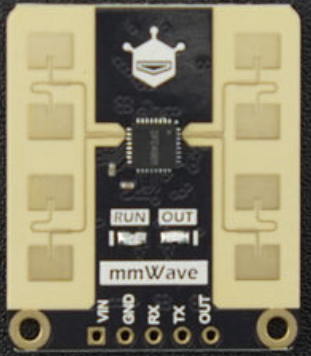](https://bookstack.muchtall.com/uploads/images/gallery/2024-10/OVa0wNf4AGSCQARQ-image.png) - Amazon: Unavailable ("Gravity" SKU SEN0610 listed, but lacks the 8 antenna panels, using 2 instead. Limited feature set and some poor reviews) - DFRobot: [https://www.dfrobot.com/product-2793.html](https://www.dfrobot.com/product-2793.html) - Digikey: [https://www.digikey.com/en/products/detail/dfrobot/SEN0609/23028638?s=N4IgTCBcDaIMoFEByAGAbCgnCAugXyA](https://www.digikey.com/en/products/detail/dfrobot/SEN0609/23028638?s=N4IgTCBcDaIMoFEByAGAbCgnCAugXyA) - Mouser: [https://www.mouser.com/ProductDetail/DFRobot/SEN0609?qs=HFfMDpzxxd21aKNJkzimmg%3D%3D](https://www.mouser.com/ProductDetail/DFRobot/SEN0609?qs=HFfMDpzxxd21aKNJkzimmg%3D%3D) - Cost: $14 - Features: - Prescence Detection up to 16m (52ft) - Motion Detection up to 25m (82ft) - Horizontal Detection Angle of 100° - Vertical Detection Angle of 40° ### LD2450 AKA: HLK-LD2450 [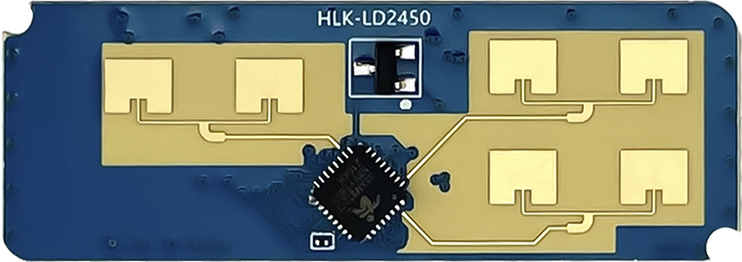](https://bookstack.muchtall.com/uploads/images/gallery/2024-10/UPvEDEPIOfp8M4Zp-image.png) - Amazon: [https://www.amazon.com/gp/product/B0CGNM1VLM/](https://www.amazon.com/gp/product/B0CGNM1VLM/) - Cost ($): $9 ea. @ $45 for 5 - Features - Prescence Detection up to 6m (19ft) - Azimuth (L/R): ±60° (120?) - Pitch (Up/Dn): ±35° (70?) - Track up to 3 targets\* - Define up to 3 zones\* - 2 sensors might cover the same area and more effectively than an LD1125H, for less cost \* May be an ESPHome implementation-specific limitation that can be overcome by tweaking the lambdas ### LD1125H AKA: HLK-LD1125H-24G [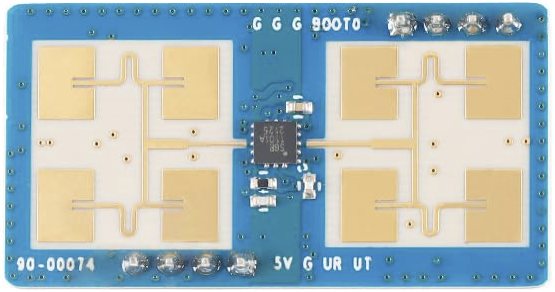](https://bookstack.muchtall.com/uploads/images/gallery/2024-10/jhPCIfFuB14VQfYa-image.png) - Amazon: [https://www.amazon.com/EC-Buying-HLK-LD1125H-24G-Millimeter-Respiratory/dp/B0C743T4H9/](https://www.amazon.com/EC-Buying-HLK-LD1125H-24G-Millimeter-Respiratory/dp/B0C743T4H9/) - Cost ($$$): ~$25 ea. (Might be able to be sourced cheaper via AliExpress, etc) - Features - Moving Body Detection up to 8m (26ft) - Stationary Body Detection up to 4m (13ft) - Ceiling Mounted Body Detection 2m (6.5ft) radius @ 3m (10ft) height - Limitations - Not cost-effective when an LD2450's range will do - No target tracking or zones - Movement filtering, such as for a fan, must be done by a radius range with an implementation-specific lambdaSEN0610 # Getting AWS SSO to work with KeePass and Kee The AWS SSO login page (such as those that come after the custom "acmeco.awsapps.com" domains) tend to be a bit problematic for full integration with Kee/KeePass2/. Here's my working configuration... - Kee - In the browser, go to the Kee options page - This can be found by clicking the **Kee extension icon**, click the **menu icon**, then click **Options (gear icon)** - Under **Finding forms → Include List → Text field ID**, append these options: ``` ,awsui-input-2,awsui-input-0 ``` - KeePass - Edit your password entry - Go to **Kee → Form fields** - Alter the username entry... - Edit the **KeePass username** entry - Set the **Id** field to **awsui-input-0** then click **Ok** - Create a text-type TOTP entry - Click **Add** - Set the **Value** field to **{TOTP}** - Set the **Id** field to **awsui-input-2** - Set the **KeePass placeholders** option to **Enable** then click **Ok** - Create a password-type TOTP entry - Click **Add** - Set the **Value** field to **{TOTP}** - Set the **Type** to **Password** - Set the **Id** field to **awsui-input-2** then click **Ok** - Click **OK** to save the password entry| Information |
| It may seem odd that we are adding both a text and a password type entry. It appears that AWS uses both types depending on the SSO implementation. Using both entries covers both use cases. |