Skip to main content
Hollyland Lark A1 Quick-Start Guide
First-time Setup
- Install the Holly Audio app
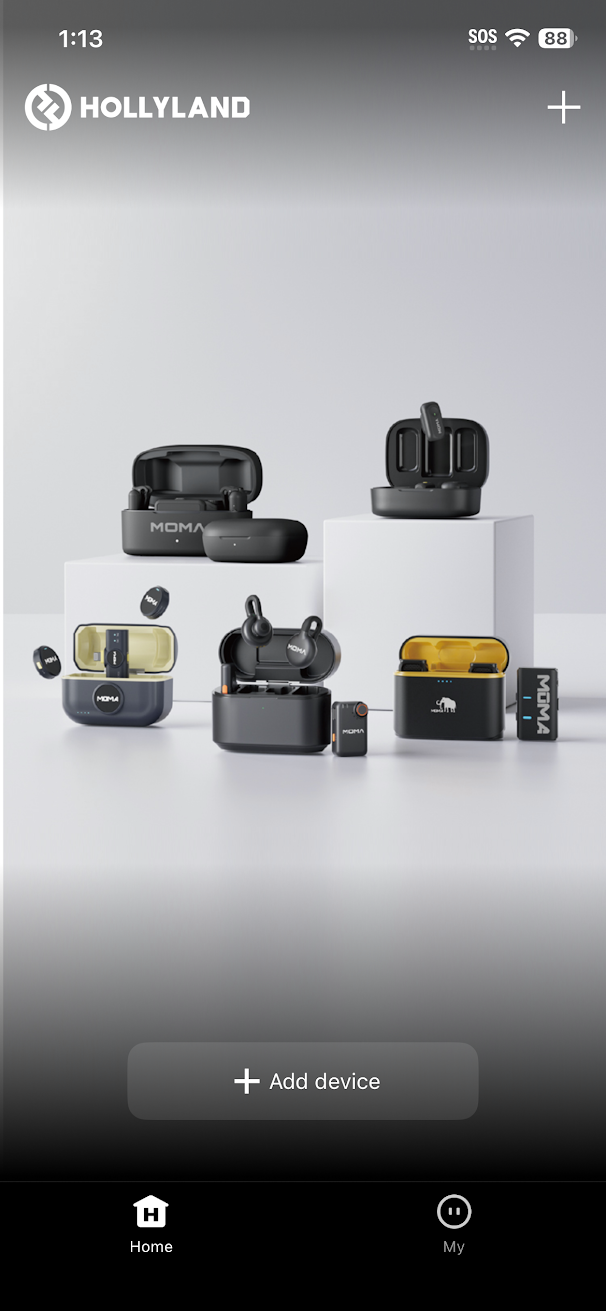
- Launch the app
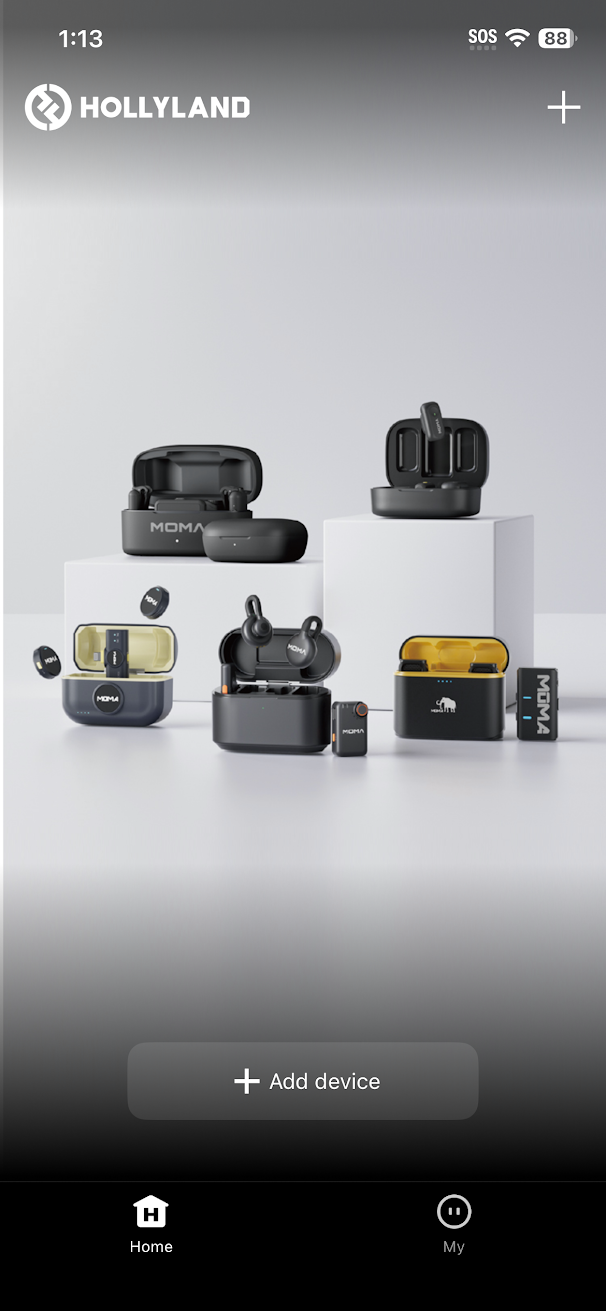
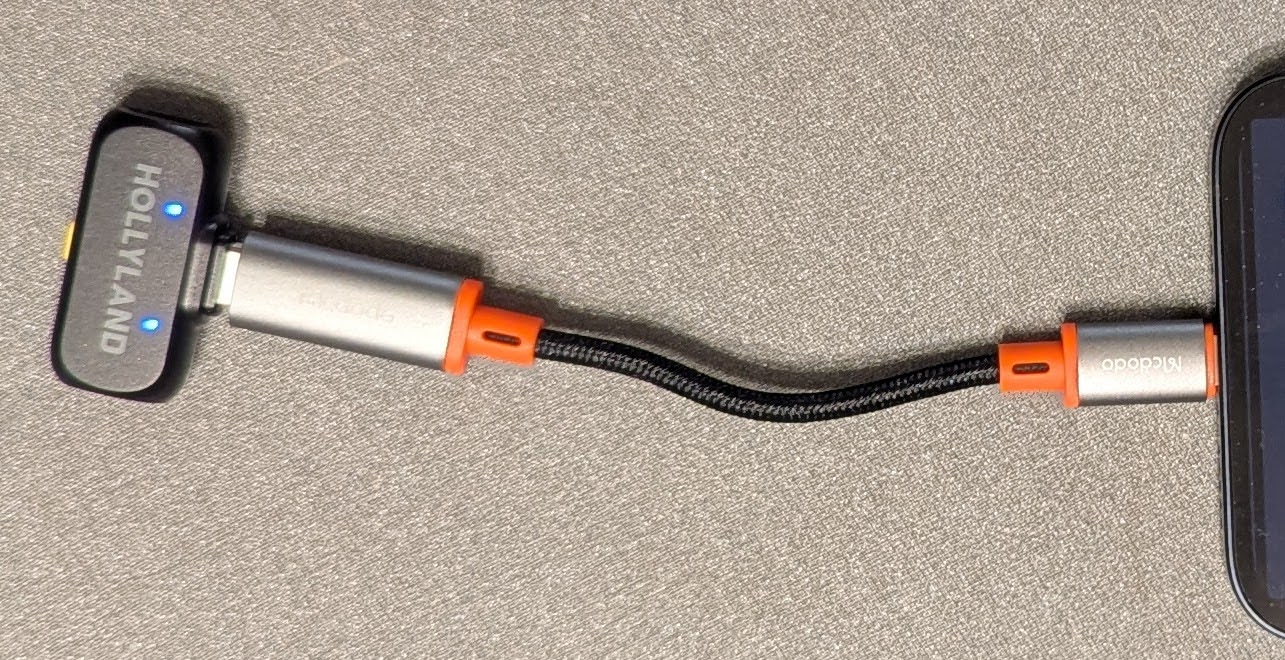
- Plug the Receiver into your phone (use the orange adapter cable on iPhones with Lightning charging ports)
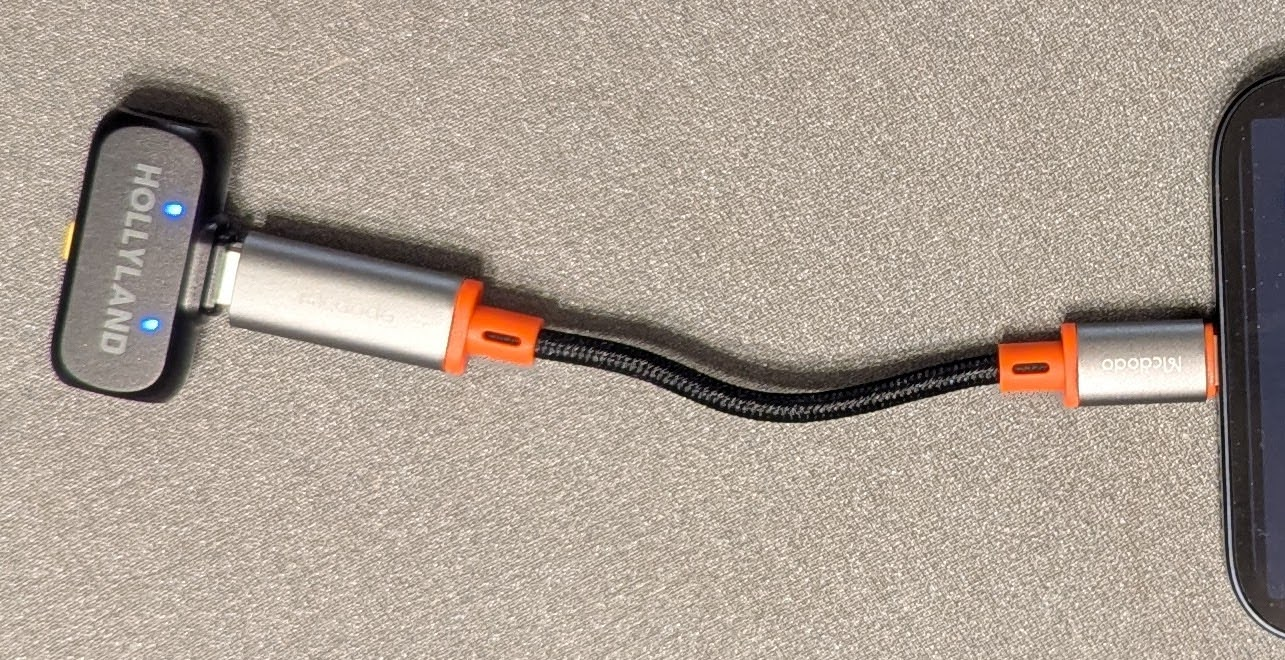
-
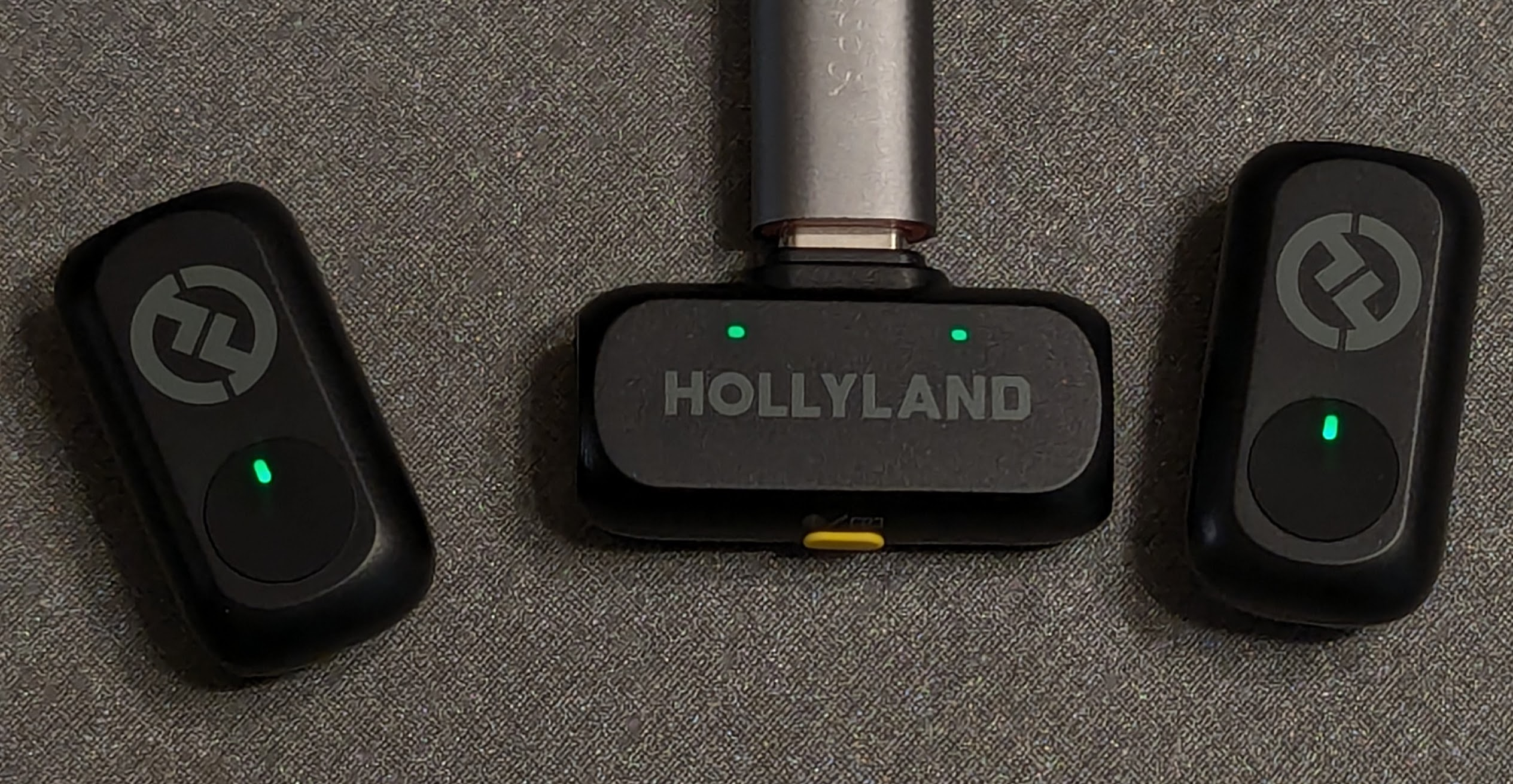
Remove the two lapel microphones from the case. The lights on the receiver and the microphones should turn green.
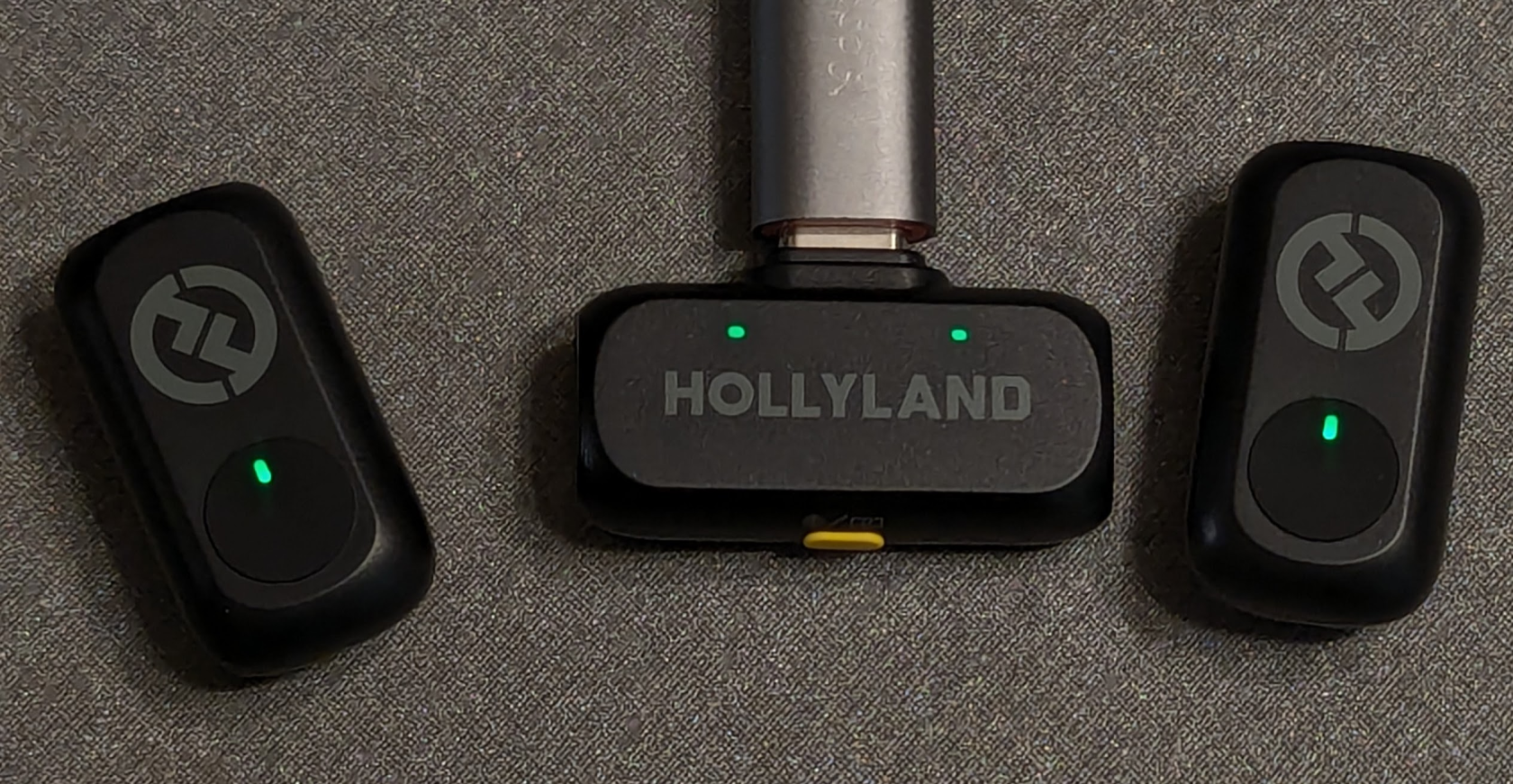
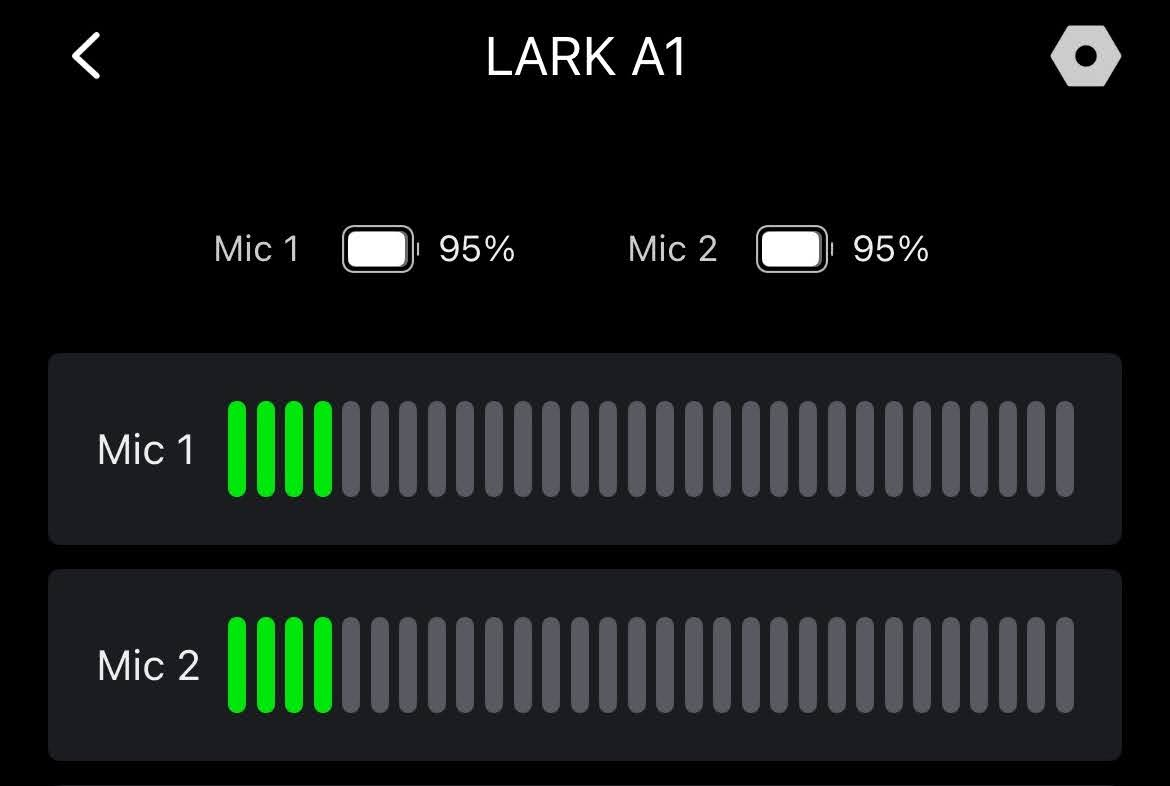
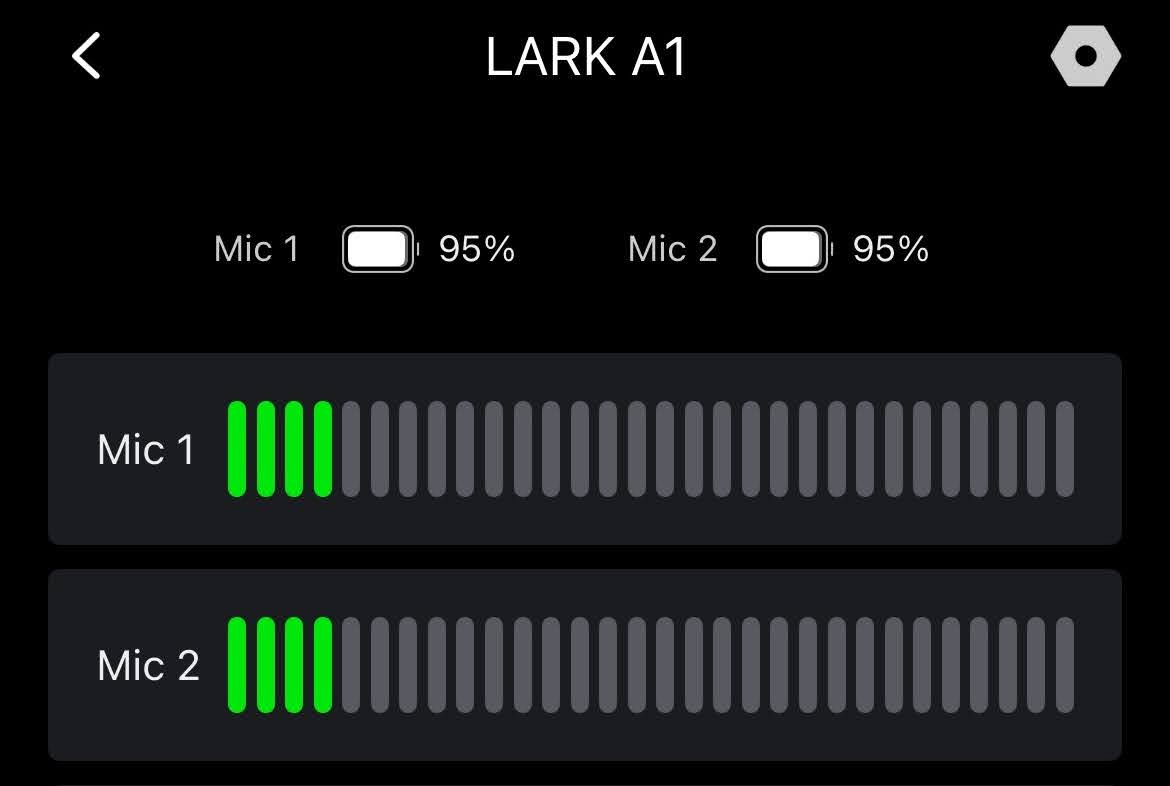
- You should now see the microphones in the Holly App. Tap on each of the mics to see the green audio meter jump and confirm they are working.
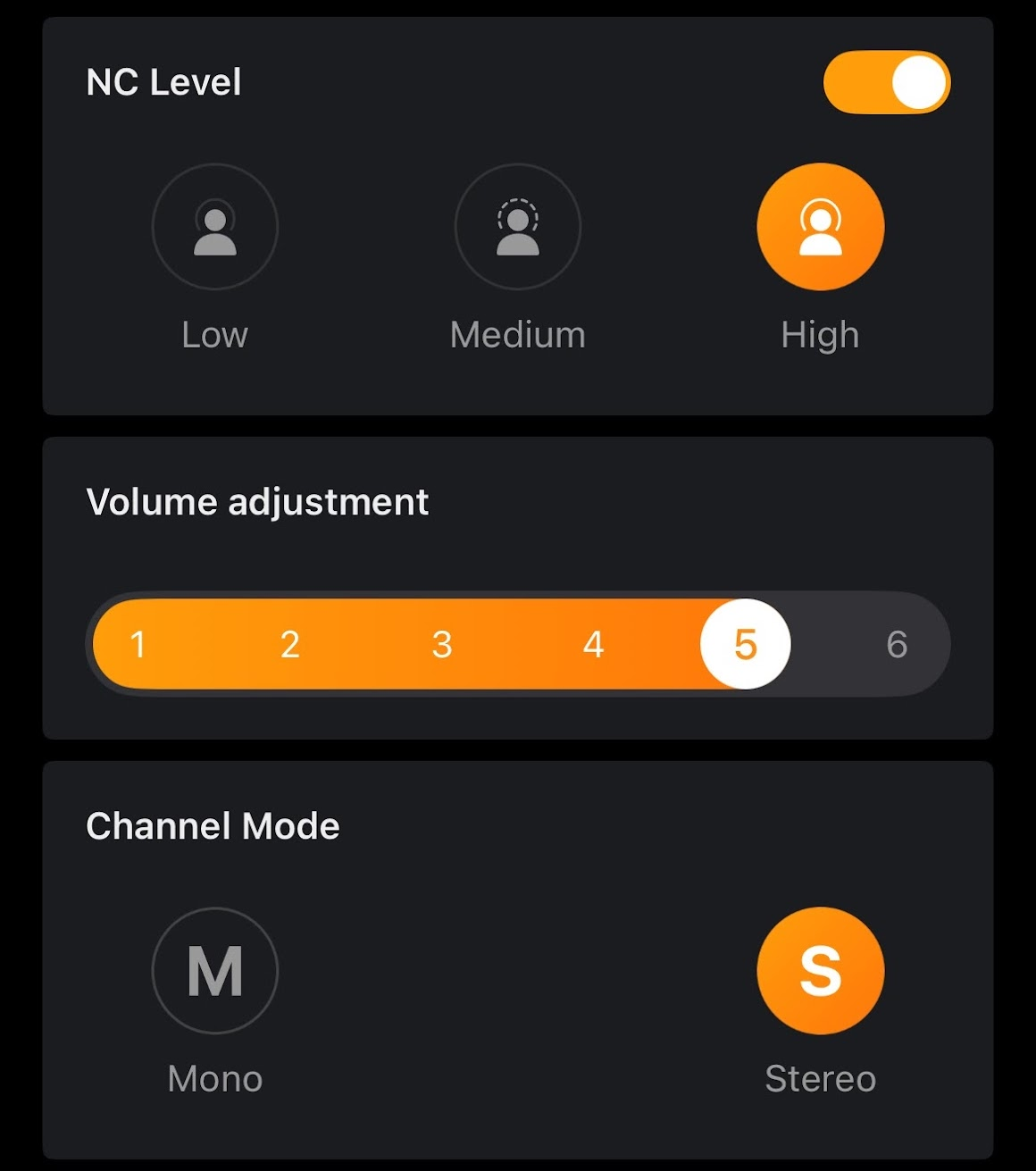
- Set the microphone mode to Stereo (S)
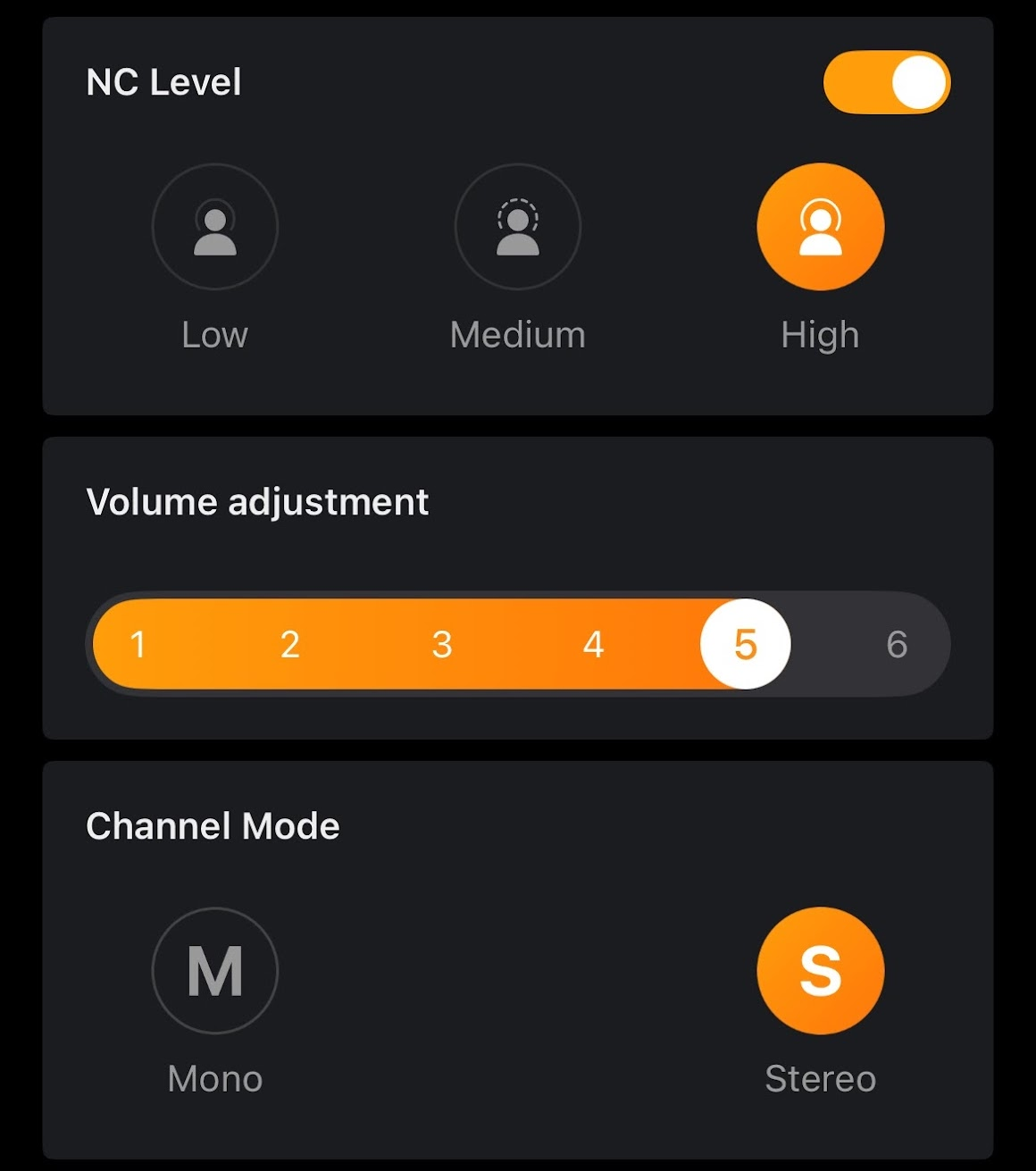
- The microphones should now be set up correctly for future use. You may proceed to the next section on use.
Using the Microphones
- If you have already set up the microphone app, just ensure that the microphone receiver has been plugged in as shown in the section above
- Open the Holly Audio app and ensure that the microphones are detected (green lights)
- Open your voice recorder app (or Camera if your want to record video). Your built-in voice and/or camera apps should automatically use the Hollyland microphones for sound input without additional changes.
Voice Recording/Memos
Apple iOS (iPhone)
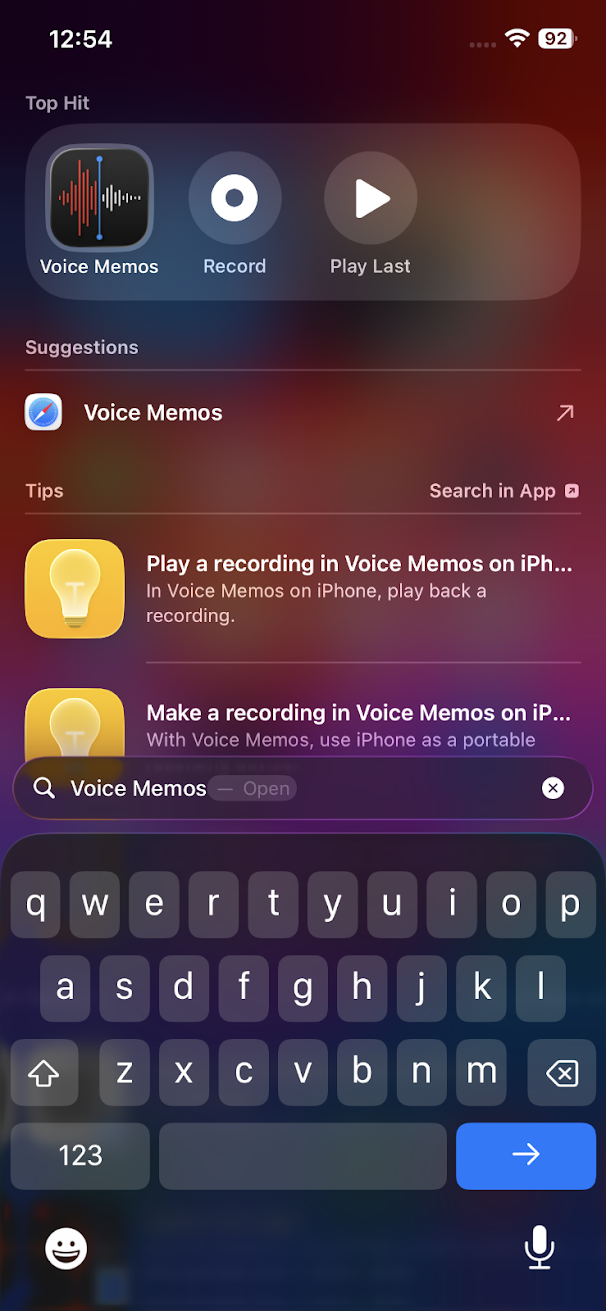
- Open search on your phone and search for "Voice Memos"
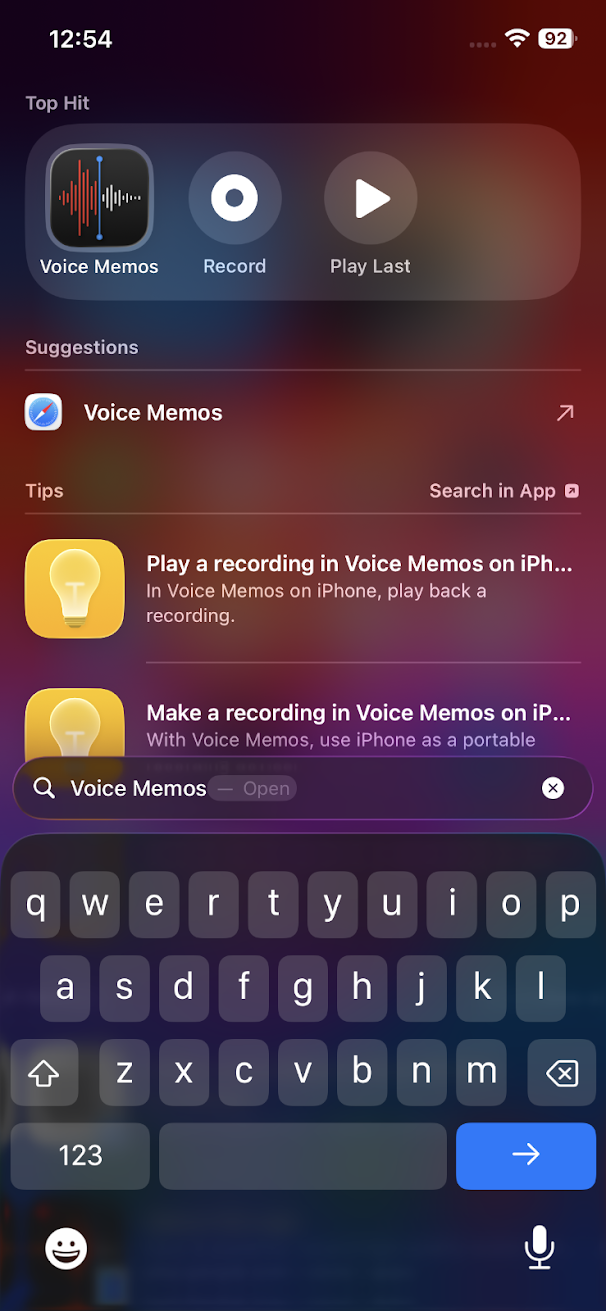
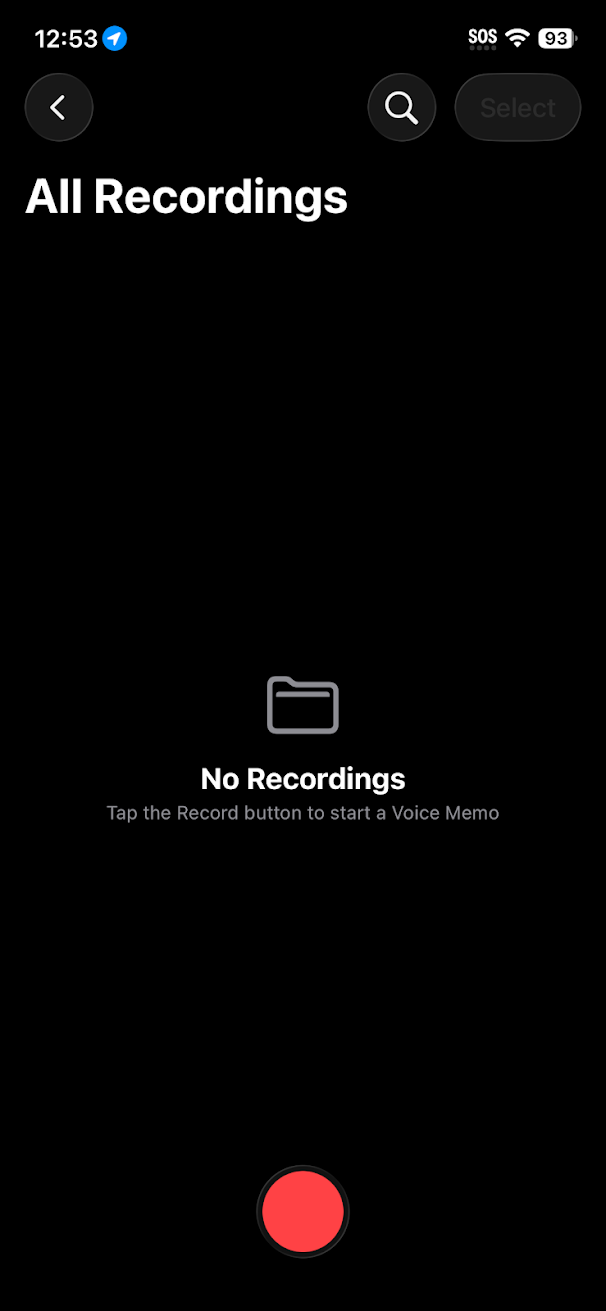
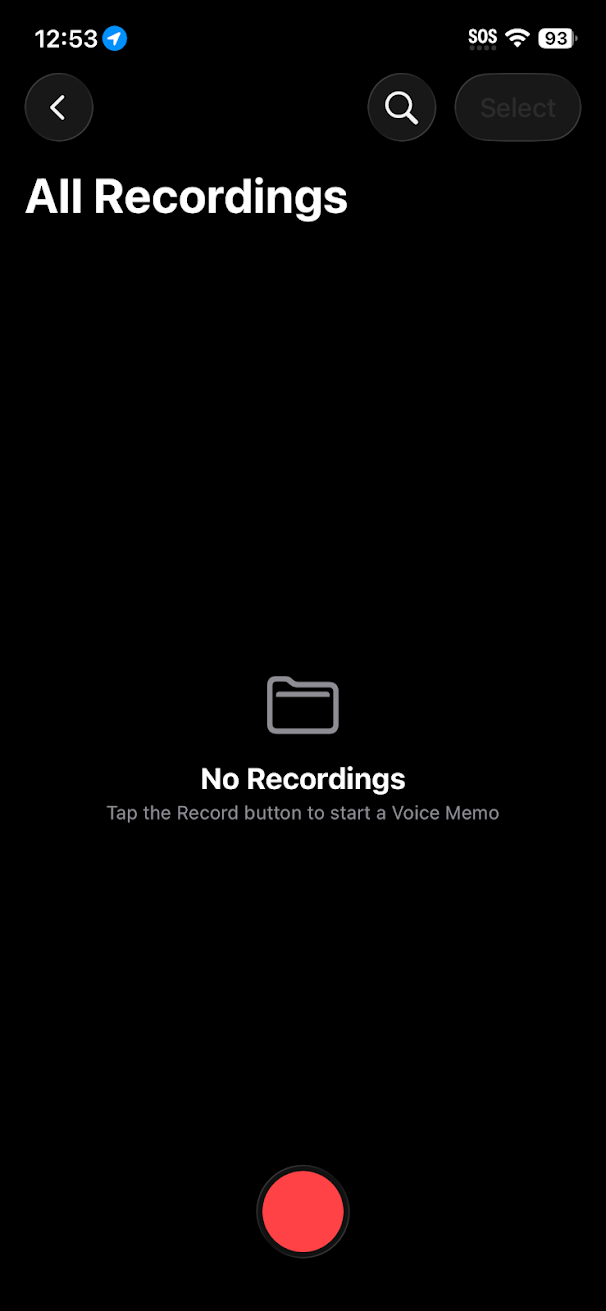
- Open the Voice Memos app
- Press the Record (red dot) button to start recording
- It is recommended that you first test each microphone and playback your test recording(s) to ensure that both microphones are working before recording important events/content.
Android
- Camera Video
- You should just be able to use your built-in camera app to record
- Voice Recorder
- Different brands may offer voice recording apps exclusive to their devices. Here are some suggested options: