Skip to main content
Hollyland Lark A1 Quick-Start Guide
First-time Setup
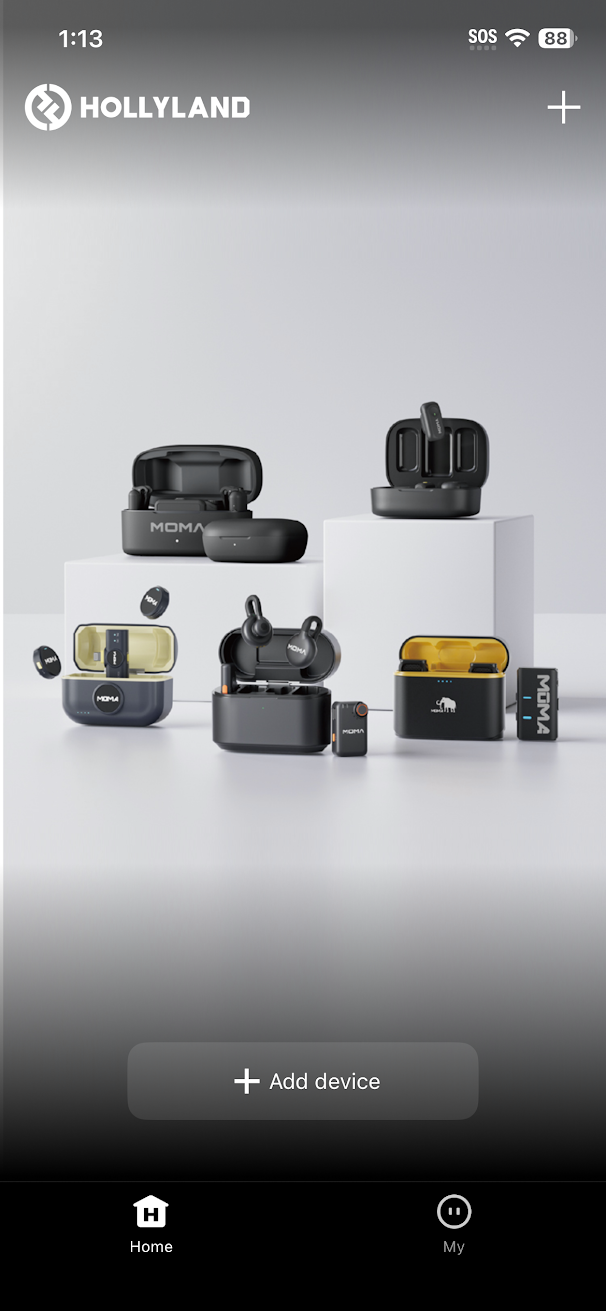
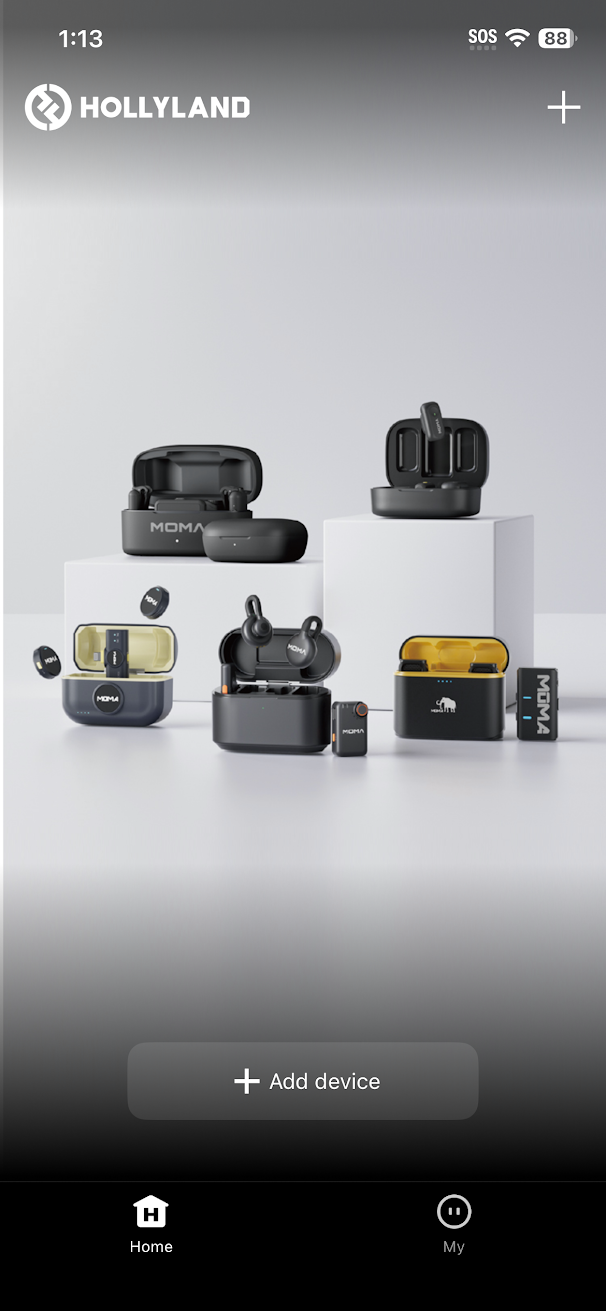
- Install the Holly Audio app
- Launch the app

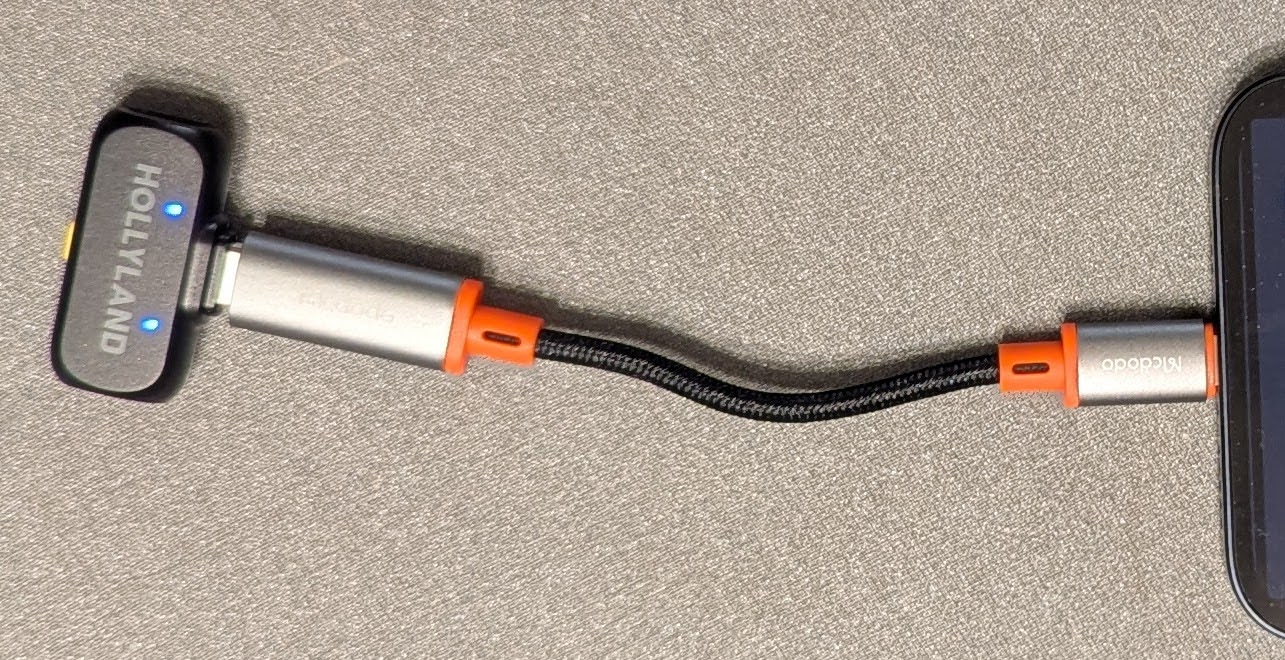
- Plug the Receiver into your phone (use the orange adapter cable on iPhones with Lightning charging ports)
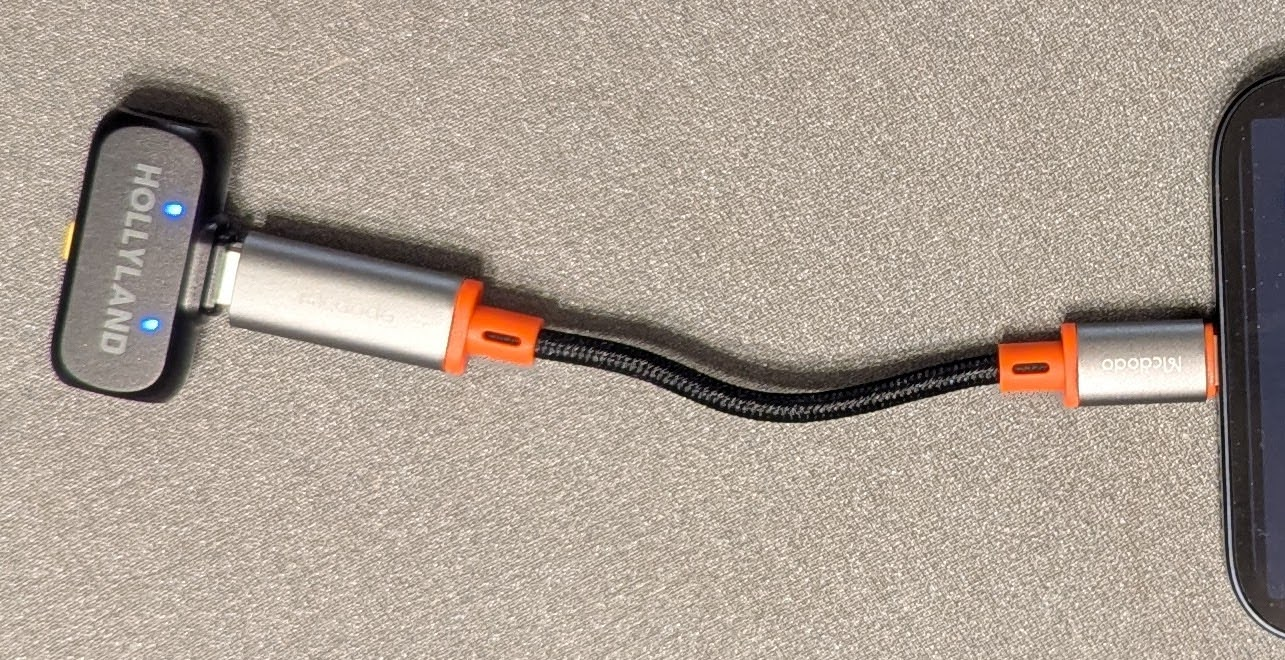
-
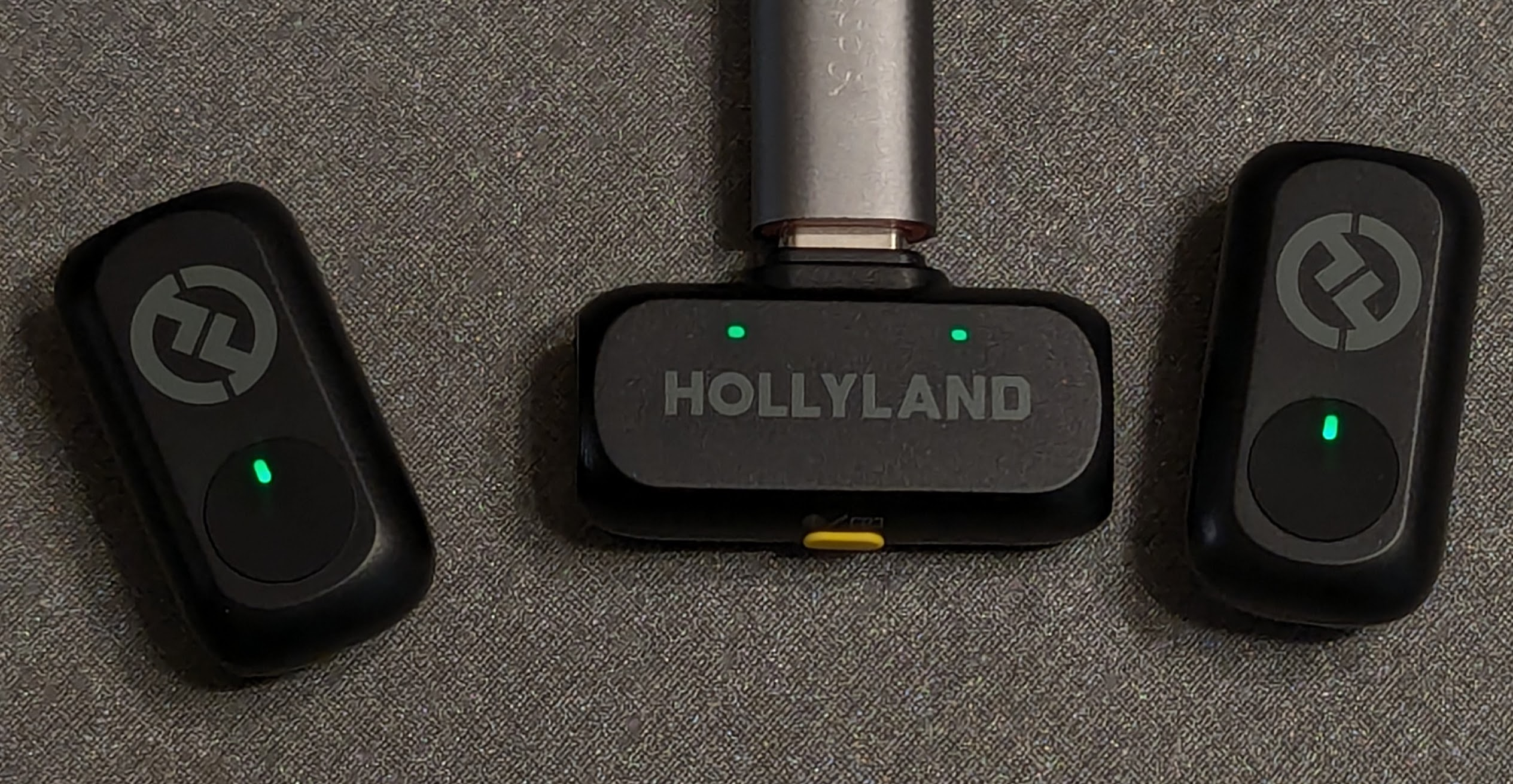
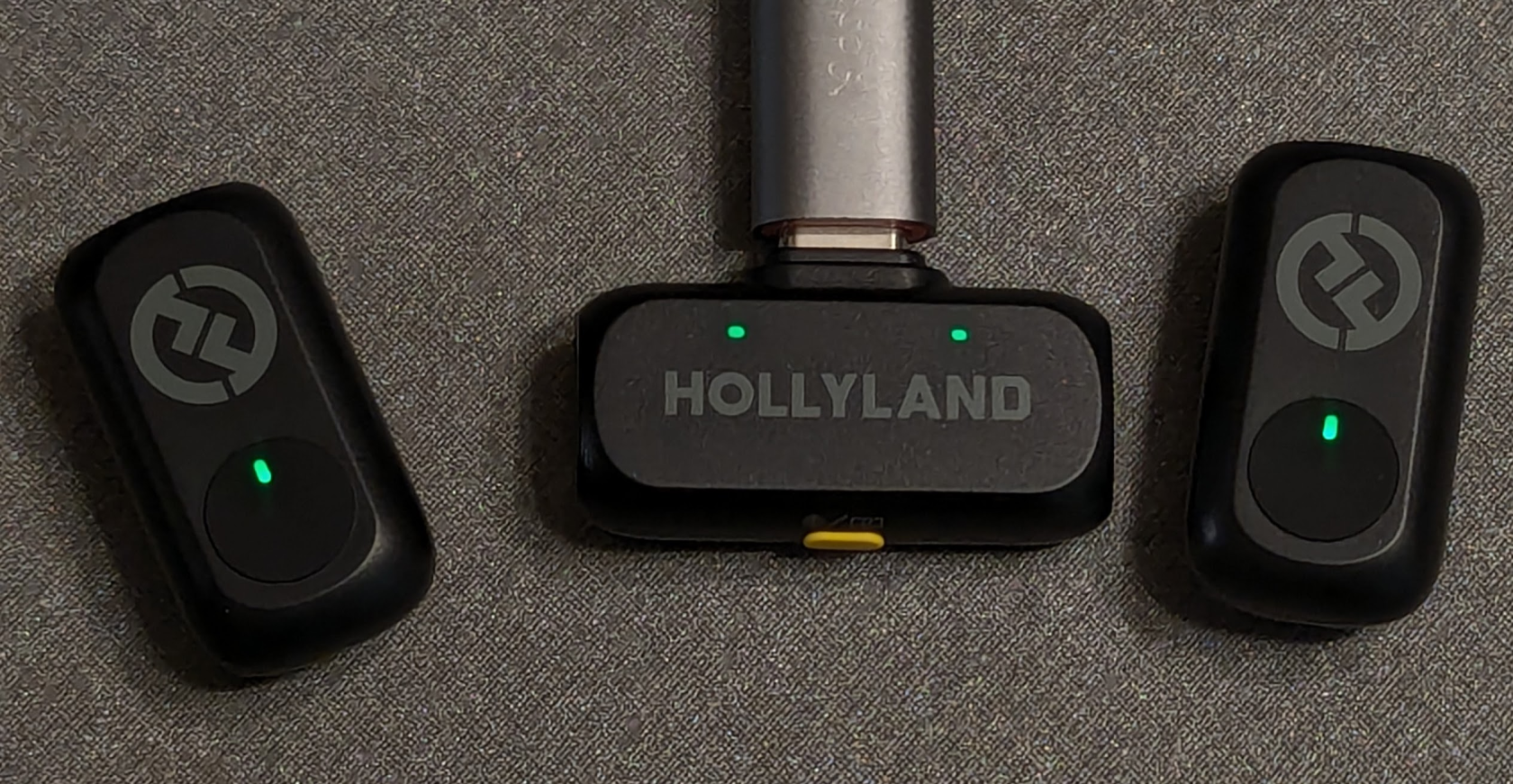
Remove the two lapel microphones from the case. The lights on the receiver and the microphones should turn green.
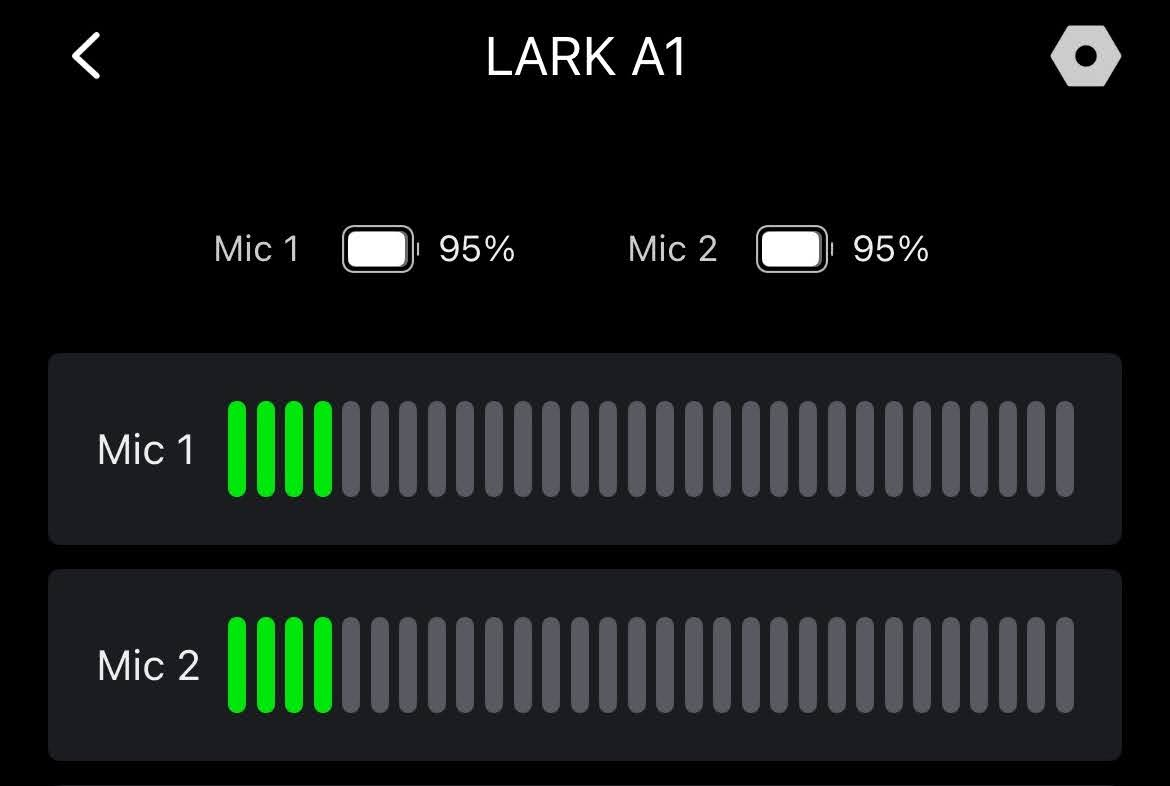
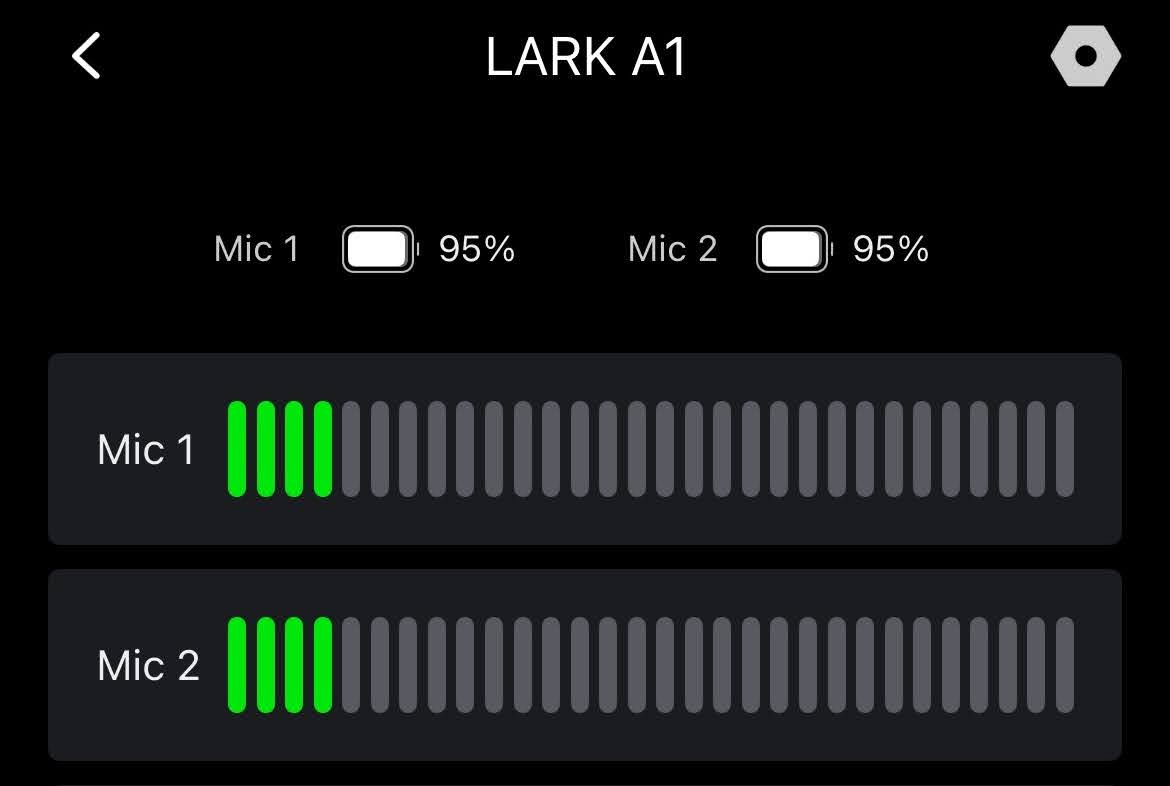
- You should now see the microphones in the Holly App. Tap on each of the mics to see the green audio meter jump and confirm they are working.
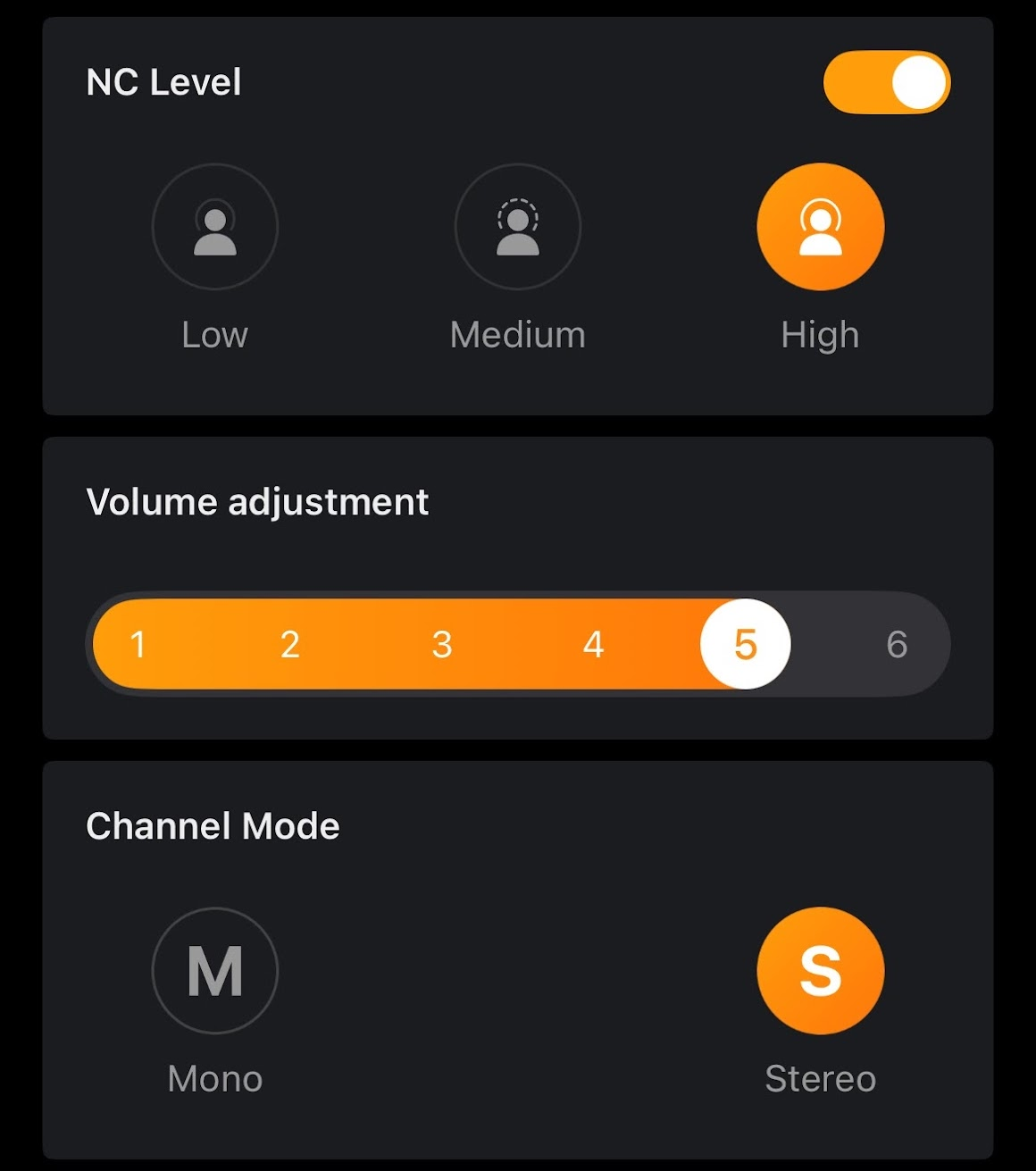
- Set the microphone mode to Stereo (S)
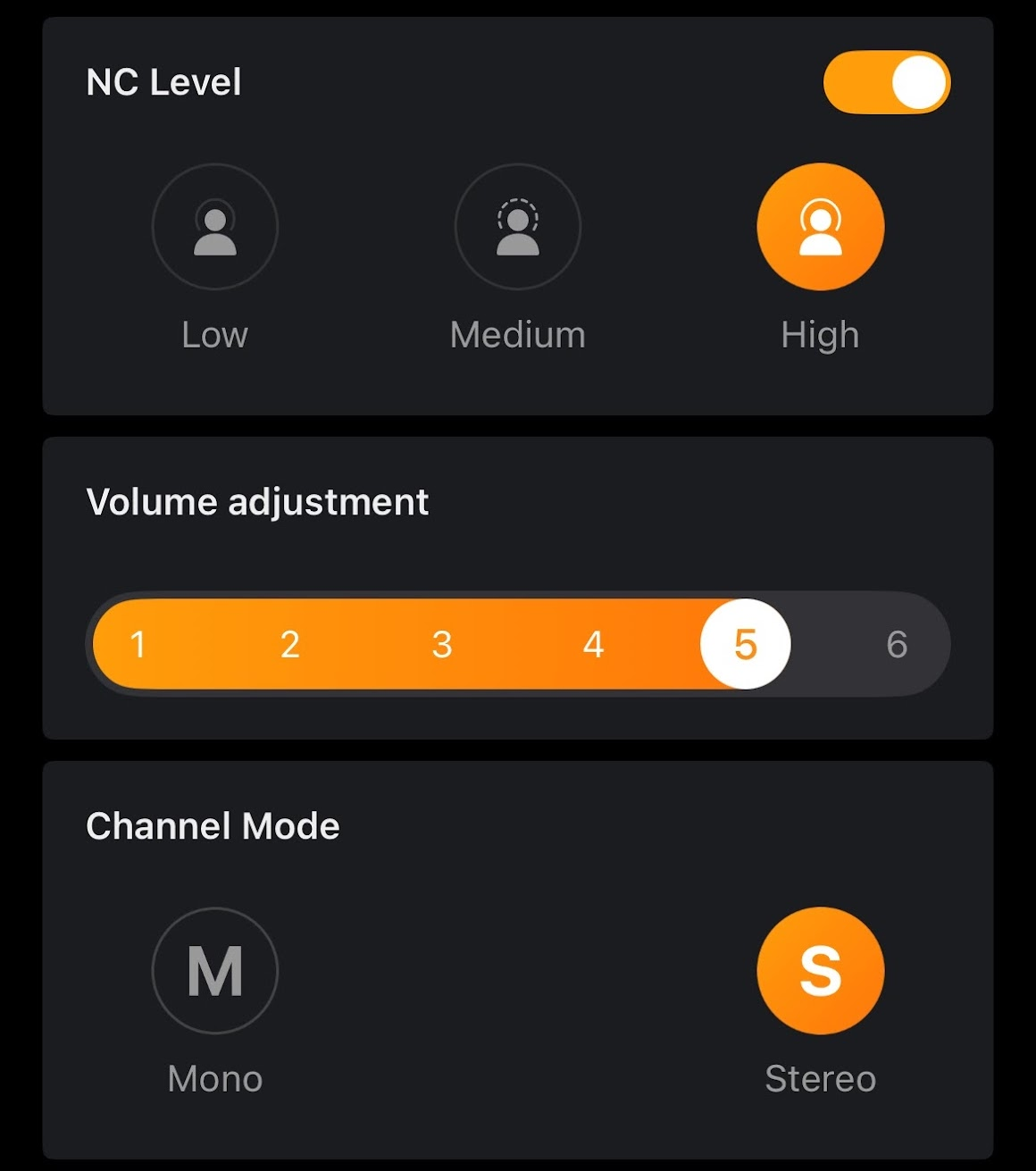
- The microphones should now be set up correctly for future use. You may proceed to the next section on use.
Using the Microphones
- If you have already set up the microphone app, just ensure that the microphone receiver has been plugged in as shown in the section above
- Open the Holly Audio app and ensure that the microphones are detected (green lights)
- Open your voice recorder app (or Camera if your want to record video). Your built-in voice and/or camera apps should automatically use the Hollyland microphones for sound input without additional changes.
- Both mics have a magnetic oval to clip the lapel mic onto the shirt of the person speaking. Take care when removing the microphone from the person's shirt to not lose the magnet.
Mic placement: There are two lapel mics for stereo recording. You can either place one mic on either shoulder lapel of the person speaking, or place one mic on one person and another mic on another person to capture both sides of a conversation.
Voice Recording/Memos
Apple iOS (iPhone)
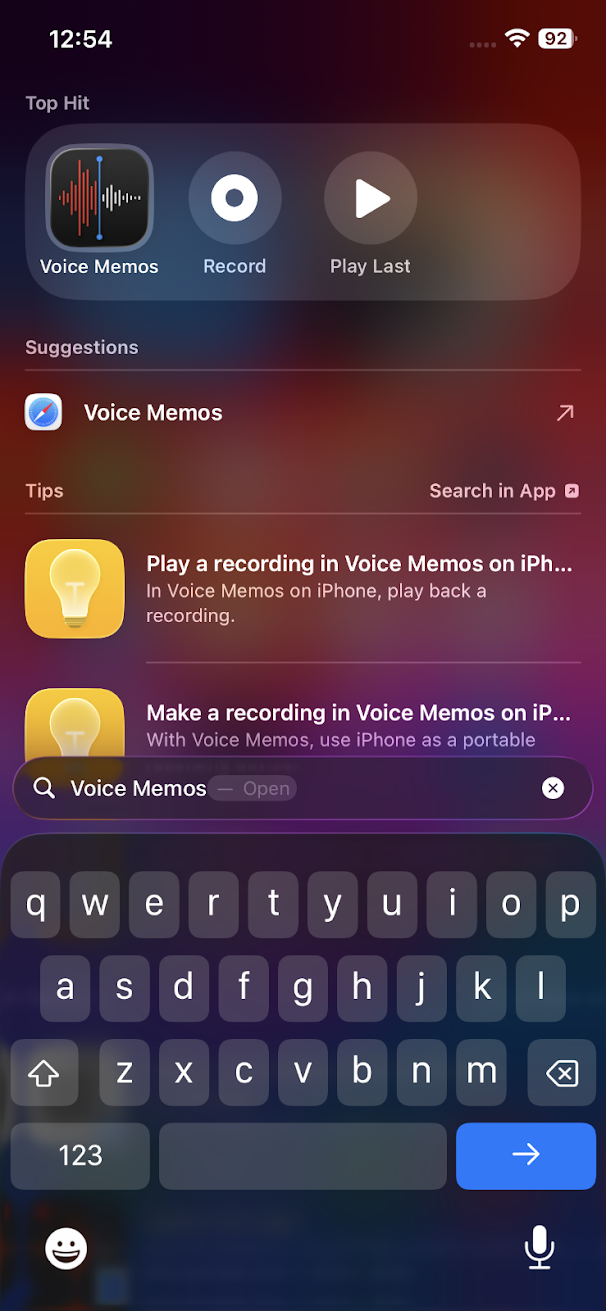
- Open search on your phone and search for "Voice Memos"
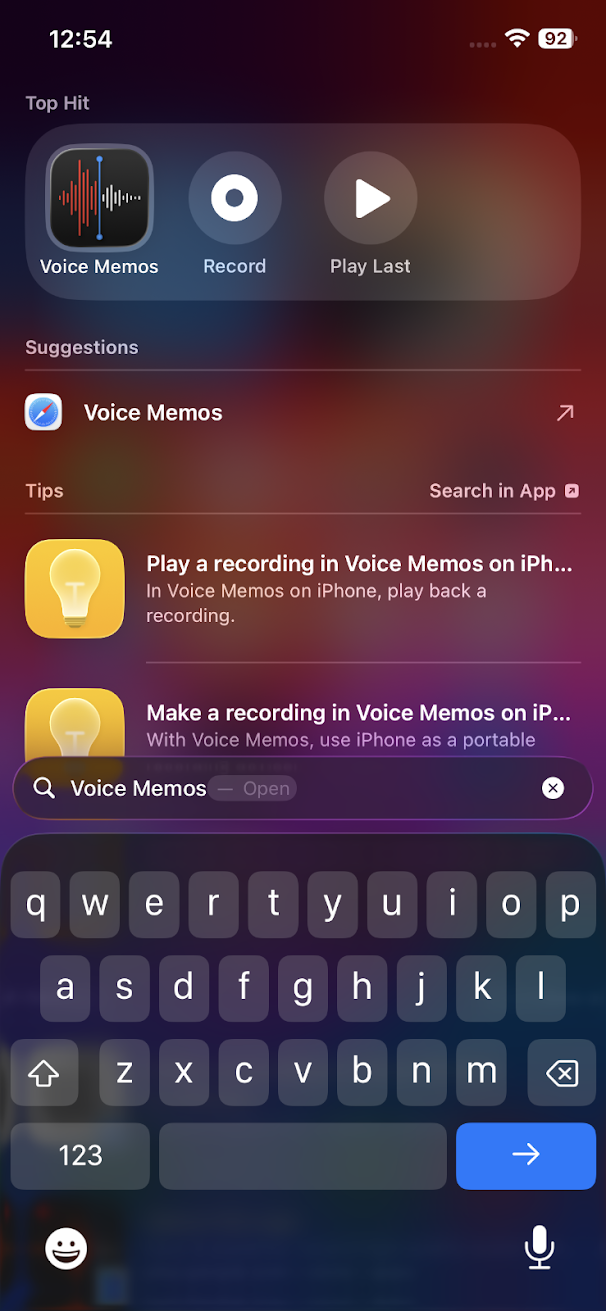
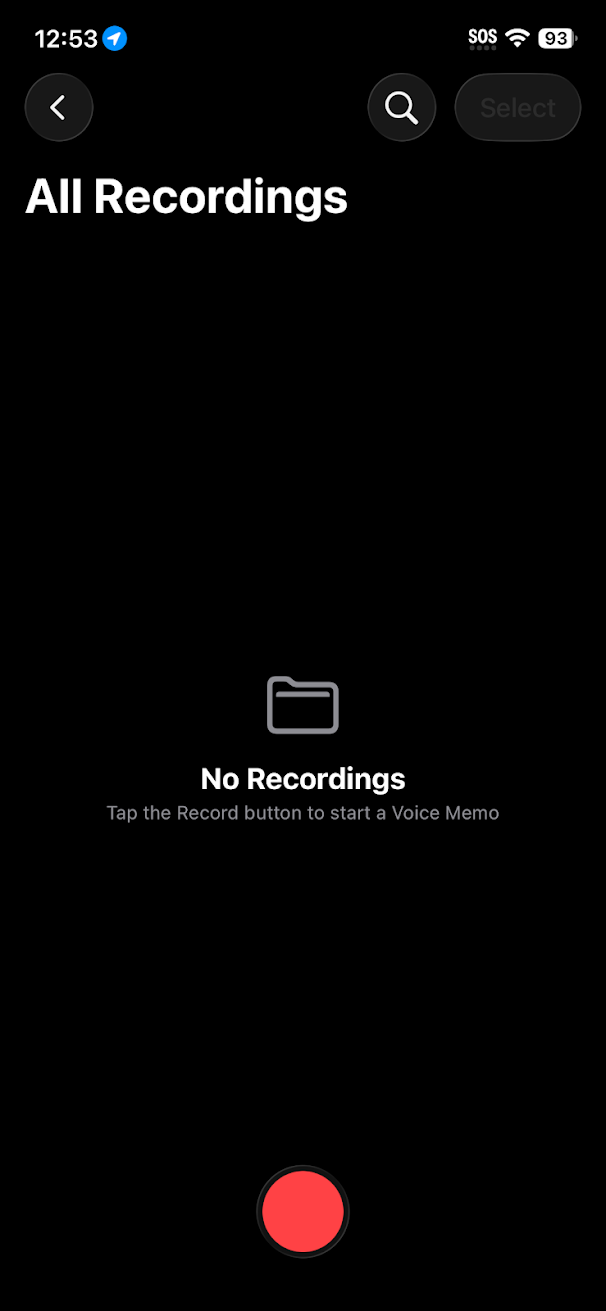
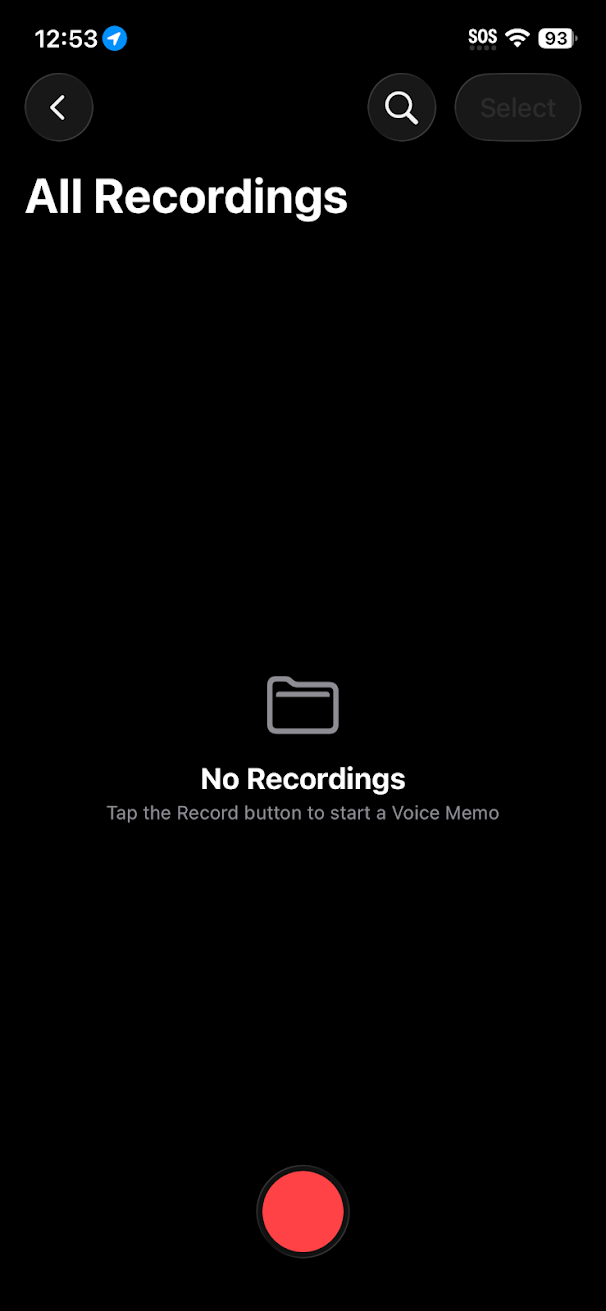
- Open the Voice Memos app
- Press the Record (red dot) button to start recording
- It is recommended that you first test each microphone and playback your test recording(s) to ensure that both microphones are working before recording important events/content.
Android
- Camera Video
- You should just be able to use your built-in camera app to record
- Voice Recorder
- Different brands may offer voice recording apps exclusive to their devices. Here are some suggested options: